Migrating from Dynamics NAV to Business Central: What will happen with the integration
Moving from Dynamics NAV to Business Central does not automatically mean rebuilding your integration, and what happens depends on how it was built. Depending on the setup, the integration may need to be rebuilt, reconfigured, or adapted. This blog shares a six-step migration guide to help you move to Business Central without putting your business at risk.
Moving to a new ERP can feel like a major project, especially when your CRM and other systems depend on your existing Dynamics NAV integration. But the move does not necessarily mean starting from scratch.
In our recent webinar, Beate H. Thomsen and Andreea Arseni looked at what happens to your integration when moving from Dynamics NAV to Business Central, what changes between on-premise and cloud, and how to approach the migration in a controlled way.
What this article covers:
- What happens to your integration when moving to Business Central?
- What changes when moving to Business Central Cloud?
- How can you keep your migration under control?
- Download 6-Step Upgrade Guide
What happens to your integration when moving to Business Central?
Moving from Dynamics NAV to Business Central does not automatically mean rebuilding your integration.
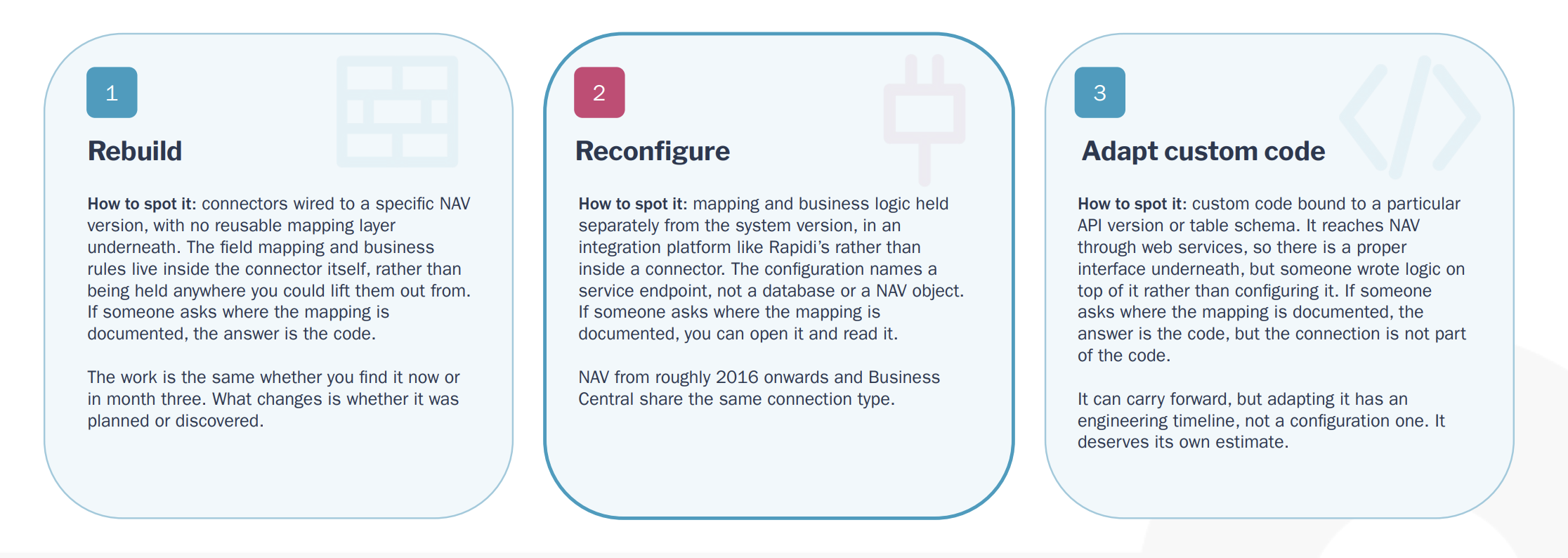
What happens depends on how the integration was built and how it connects to Dynamics NAV. There are three possible scenarios: rebuild, reconfigure, or adapt.
Rebuild
If your integration is tied to a specific Dynamics NAV version, reads NAV tables directly, or has field mappings and business rules built into the connector, parts of it may need to be rebuilt.
A useful question to ask is: where are your field mappings and business rules documented?
If the answer is simply "it's in the code," you may be looking at a rebuild.
Reconfigure
If your mapping and business logic are held separately from the ERP, for example in an integration platform, the existing integration may only need to be reconfigured.
This can involve repointing the connection, setting up authentication, and remapping fields that have changed.
In this case, the migration is much closer to a configuration job than a complete rebuild.
Adapt
Some integrations use custom code against NAV web services. In these cases, the connection may carry forward, but code tied to a specific API version or NAV schema may need to be adapted.
This is more than a configuration change, but it does not necessarily mean rebuilding the entire integration.
The important point is that what happens to your integration depends on how it was built, not simply on how old your NAV system is.
What changes when moving to Business Central Cloud?
The integration design does not necessarily change, but how you connect to Business Central does.
More can carry over than you might expect. Your integration scope, data flows, matching rules, deduplication, transformation logic, conflict handling, and sync frequency do not automatically change because you are moving to Business Central.
The main differences between Dynamics NAV, Business Central on-premise, and Business Central Cloud are around:
- Access method
- Authentication
- Where the integration engine sits
- Custom fields
- Volume and throughput
- Test environments
For example, moving to Business Central Cloud can mean updating authentication, exposing custom fields through the new environment, and taking throttling and batching into account.
The short version:
Cloud changes how you connect, not what you connect.
How can you keep your migration under control?
Once you understand what needs to happen to your integration, the next challenge is moving to the new system without putting everything on one big cutover weekend.
The webinar's six-step approach is:
1. Map and scope
Decide what moves, what stays behind as history, and agree on the cutoff date.
2. Cleanse at source
Deduplicate and fix your data in the old system before moving it.
3. Dry-run a subset
Test a representative part of the migration and find problems while they are still easier to fix.
4. Run old and new in parallel
Keep both systems live and current with two-way sync. This means no freeze and no lost work.
5. Validate and reconcile
Agree on your acceptance criteria before you start and use them to check the results.
6. Cut over on your terms
Switch off the old system once the new one has been proven, rather than simply because a date was fixed months earlier.
The goal is simple: find the problems during the dry run, not on go-live weekend.
Download the 6-Step Upgrade Guide & webinar resources
Want the full approach with a checklist for each step?
The 6-Step Upgrade Guide covers everything from mapping and cleansing your data to running both systems in parallel, validating the results, and cutting over on your terms.
Download the webinar slides to get all the insights in one place.
If you're planning a Dynamics NAV to Business Central migration and want to discuss your integration, contact us for an assessment →
Frequently Asked Questions
What happens to our existing integrations when we move from NAV to Business Central?
It depends on what the integration is bound to. If it is bound to a version, a SQL schema or a specific endpoint, it is a rebuild. If it is bound to a connection definition with mappings you own, it is a reconfigure: you point it at the new system and the mappings carry over. Microsoft's own cloud migration checklist puts reconnecting integrations at step 7 of 8, which tells you how the industry currently treats it. NAV 2016 onwards and Business Central use the same Rapidi connection type, so for Rapidi customers this is a reconnect rather than a rebuild.
What happens to the custom fields we added to NAV years ago?
This is the question that decides whether your integration survives, and it is usually asked too late. There are three cases, and you need to know which one each field is in before the budget is set: the field already exists in Business Central as standard, the field comes across as part of an extension, or the field does not exist and someone has to decide whether it should. Audit your custom fields before the project is scoped, not mid-flight.
Can we run NAV and Business Central side by side during the transition?
Yes, and it is the calmer way to do it, but not with Microsoft's cloud migration tool. That tool is one-way replication into the new environment, and Microsoft's own documentation warns that each time the migration runs, changes made in the online target company are overwritten. It moves data; it does not let both systems be live. Running genuinely in parallel means a two-way sync between the two systems, with an agreed cut-off, a validation phase and a cutover on your date.
Can we go straight from Dynamics NAV to Business Central online?
No. Microsoft's own path for NAV 2015 to 2018 is three hops: Business Central version 14 on-premises, then Business Central on-premises version 25 or later, then Business Central online. From NAV 2013 it is four hops, and from NAV 2009 it is five. Dynamics GP and SL from 2015 onwards migrate directly, but NAV does not. Every hop is a point where an integration bound to a version, an endpoint or a schema has to be dealt with again.
Our customisations were built in C/AL. What happens to them?
Anything with code customisations has to be converted to AL extensions before you can go online. Microsoft is explicit that data from tables with code customisations cannot be carried forward from Dynamics NAV unless those customisations are handled by extensions installed both on-premises and online. The alternative is the Business Central 14 reimplementation tool, which moves master data, opening balances and setup only, and carries forward neither historical transactions nor legacy customisations. If your customisations are already extensions, upgrades are routine. The debt is specifically pre-extension code.
We use the standard Business Central to Dynamics 365 Sales sync. Does it just carry on?
No. Microsoft lists reconfiguring the Dynamics 365 Sales connection as its own step after cloud migration: you have to set up the connection again. There is also a trap inside the reconnect. Microsoft's page for the Use Default Synchronization Setup action states that all custom mappings will be overwritten, so if you have tailored the standard sync at all, a routine reconnect can wipe that tailoring. Write your mappings down before anyone touches it.
Are there API limits we will run into once we are in the cloud?
Yes, and they are published. Per user, per five-minute sliding window, 6,000 OData or SOAP requests. Per environment, 600 requests a minute in production and 300 in sandbox, five concurrent requests, one hundred connections, ninety-five queued, and an eight minute operation timeout. Over the limit you get a 429 with a Retry-After header. The detail most people miss is that Microsoft warns an integration running as a single user or service principal will hit the per-user limit fairly quickly, and the documented answer is to spread the work across several service principals. In practice this is a design detail rather than a crisis.
NAV 2017 support ends in January 2027. Is it already too late to plan properly?
No, but the runway is short, and it should change the shape of the plan rather than the ambition. NAV 2016 lapsed on 14 April 2026, NAV 2017 ends 11 January 2027 and NAV 2018 ends 11 January 2028. What experienced teams do with a short runway is not compress the whole project, it is shorten the first go-live: finance plus one operational area, live inside a quarter, with the rest as a dated roadmap. Keeping the existing integrations alive across the transition is what makes that shape possible.