
Support for Attachment to from Dynamics 365 Finance (read or write)
We’re excited to announce that we support bidirectional attachment transfers with Microsoft Dynamics 365 Finance!
If you’re using Salesforce and Microsoft Dynamics 365 Finance, you can seamlessly transfer attachments between these systems, ensuring smooth data flow and collaboration across platforms.
With MyRapidi, you can easily configure attachment transfers—from Microsoft Dynamics 365 Finance to Salesforce or vice versa. Whether it’s invoices, PDFs, or other essential files, our solution ensures that attachments are always accessible where you need them most. We’ve got you covered!
In this article, we’ll explore how bidirectional attachment transfers between Microsoft Dynamics 365 Finance and Salesforce can transform your operations. We’ll cover the what you can use it for, the benefits, how you set it up in MyRapidi and give you some examples.
What Can You Use This For?
Integrating attachment transfers between Microsoft Dynamics 365 Finance and Salesforce offers several benefits for your organization:
- Streamlined Processes: Automate the transfer of image and PDF files to save time and reduce manual effort.
- Enhanced Data Accessibility: Ensure all teams have instant access to the documents they need.
- Improved Collaboration: Foster better teamwork by sharing up-to-date files across departments.
- Effective Customer Engagement: Provide timely and accurate information to improve customer service.
- Efficiency Gains: Achieve better data management and operational efficiency across your organization.
What Formats Do We Support?
From Microsoft Dynamics 365 Finance:
- Supported File Formats:
- Documents:
.pdf,.doc - Images:
.png,.jpeg
- Documents:
- Storage Format: Stream file format
From Salesforce:
- Supported File Formats:
- Documents:
.pdf,.doc - Images:
.png,.jpeg
- Documents:
- Storage Format:
- Attachments must be stored in binary format.
- For transfers, attachments are converted to base64 format.
Steps to Configure Bidirectional Attachment Transfers
Here are the required steps to fully configure the bidirectional attachment transfers.
1. Identify Relevant Entities:
- In Microsoft Dynamics 365 Finance: Attachments are typically associated with records like invoices, purchase orders, or customers.
- In Salesforce: Attachments or files are often linked to opportunities, accounts, or cases.
2. Establish Transfer Logic:
Define how attachments should flow between systems:
- From Microsoft Dynamics 365 Finance to Salesforce: PDFs created in Microsoft Dynamics 365 Finance are automatically transferred to Salesforce.
- From Salesforce to Microsoft Dynamics 365 Finance: PDFs created in Salesforce are automatically transferred to Microsoft Dynamics 365 Finance.
A. From Microsoft Dynamics 365 Finance to Salesforce:
Map the Data Fields:Map the Data Fields
Using Rapidi, you can map the required attachment fields between the corresponding Microsoft Dynamics 365 Finance entity and the Salesforce object. In the screenshot, we see four mapped fields from the Microsoft Dynamics 365 Finance entity CustomerAttachmentV2 to the Salesforce Attachment object:
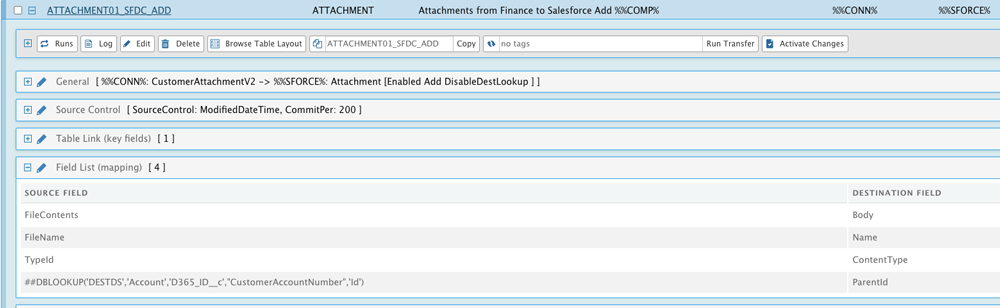
image: Mapping inside MyRapidi
The four mappings displayed:
- FileContents → Body
- Concept: The Salesforce Body field stores the actual file data in Base64-encoded format. On the Microsoft Dynamics 365 Finance side, FileContents holds the binary-encoded file. Rapidi takes the FileContents and populates the Body field in Salesforce with that same data.
- FileName → Name
- Concept: Every Attachment in Salesforce must have a Name (the file name). This maps the Microsoft Dynamics 365 Finance file’s original name to the Salesforce name, so users can recognize the attachment in Salesforce by the same filename it had in Microsoft Dynamics 365 Finance.
- TypeId → ContentType
- Concept: ContentType in Salesforce specifies the document type. On the Microsoft Dynamics 365 Finance side, TypeId is a field indicating the attachment’s format. This mapping ensures Salesforce knows how to treat the file for viewing or downloading.
- #DBLOOKUP('DESTDS','Account','D365_ID__c','CustomerAccountNumber','Id') → ParentId
- Concept: Salesforce attachments must always reference a ParentId that indicates the record to which the attachment is linked to (e.g., an Account, Opportunity, or Case).
- LOOKUP Explanation: Rapidi’s #DBLOOKUP function finds the correct Salesforce Account by matching the Microsoft Dynamics 365 Finance customer number to a custom field in Salesforce (here labeled D365_ID__c), and returns the Salesforce Id of the corresponding Account. This returned Id is then used as the attachment ParentId.
- Result: The newly created attachment is linked to the right Salesforce account, enabling Salesforce users to see the file under the correct customer record.
Example Use Case:
A new document is attached to a customer record in Microsoft Dynamics 365 Finance. This attachment is then automatically transferred to Salesforce and linked to the same customer record. Both sales and finance teams can now access the same documentation, reducing manual file transfers and fostering better cross-department collaboration.
Examples of the Attachments
The below example shows the attachment stored at the customer level in Microsoft Dynamics 365 Finance, which is then transferred to Salesforce and associated with the same customer:
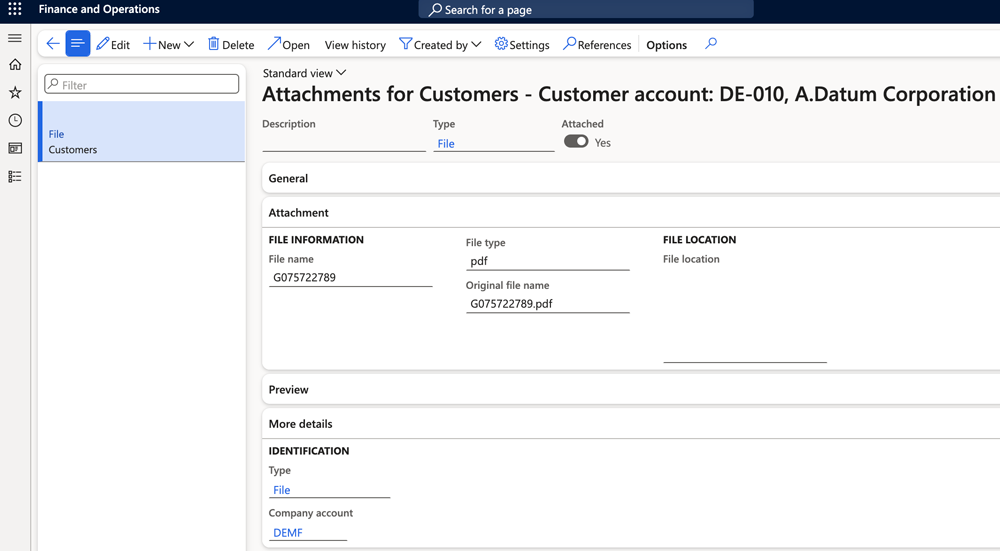
image: Attachment in Microsoft Dynamics 365 Finance
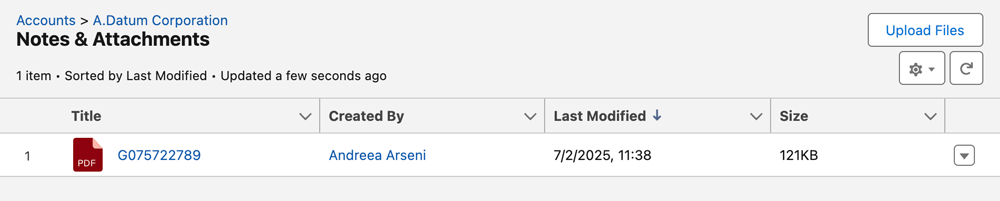
image: Attachment in Salesforce
This mapping shows how attachment transfers can be automated from Microsoft 365 Finance to Salesforce by mapping the needed fields. In this way, organizations can ensure attachments end up on the right Salesforce records, ready for use by sales or service teams.
B. From Salesforce to Microsoft Dynamics 365 Finance
Map the Data Fields
Using Rapidi, you can map the required attachment fields between the corresponding Salesforce object and the Microsoft Dynamics 365 Finance entity. In the screenshot, we see five mapped fields from the Salesforce Attachment object to the Microsoft Dynamics 365 Finance entity named CustomerAttachmentV2.
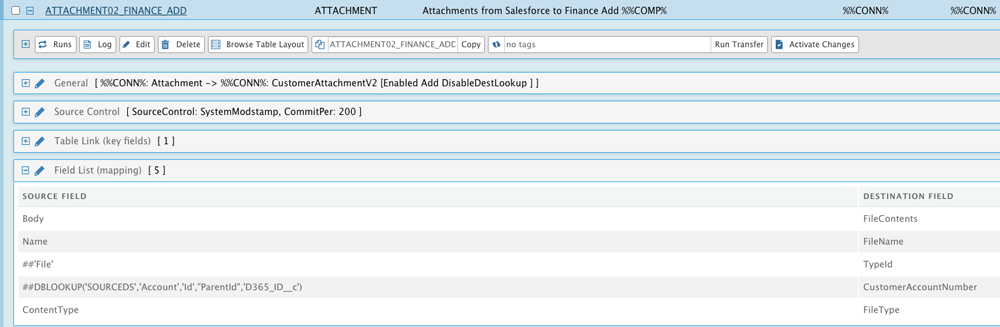
image: Mapping inside MyRapidi
The five mappings displayed:
- Body → FileContents
- Concept: The Salesforce Body field stores the actual file data (Base64-encoded). That data is mapped into the Microsoft Dynamics 365 Finance FileContents field. Once transferred, Microsoft Dynamics 365 Finance users can open or download the file from within Microsoft Dynamics 365 Finance.
- Name → FileName
- Concept: The Salesforce attachment’s file name is carried over to the Microsoft Dynamics 365 Finance record so that the file can be recognized consistently by the same name in both systems.
- ##'File' → TypeId
- Concept: This uses Rapidi’s syntax for a constant value mapping. The string File is inserted into the Microsoft Dynamics 365 Finance TypeId field for each record. However,in Microsoft Dynamics 365 Finance, the options for the TypeId are: File, Image, Note, URL. So the right one would need to be chosen.
- #DBLOOKUP('SOURCEDS','Account','Id','ParentId','D365_ID__c') → CustomerAccountNumber
- Concept:
- The Salesforce Attachment object typically references a “parent” record via the ParentId field.
- The Rapidi #DBLOOKUP function searches the Salesforce data source (SOURCEDS), looking in the Account object, where Id = ParentId (the attachment’s parent). It then returns the value stored in the D365_ID__c field on that Account.
- This returned value is placed in CustomerAccountNumber in Microsoft Dynamics 365 Finance, effectively linking the file to the correct customer account inside Microsoft Dynamics 365 Finance.
- Concept:
- ContentType → FileType
- Concept: In Salesforce, ContentType indicates the file’s type. Mapping it to FileType in Microsoft Dynamics 365 Finance preserves that file format classification, ensuring the receiving system knows how to handle and display it.
Example Use Case:
A new document is attached to a customer record in Salsforce. This attachment is then automatically transferred to Microsoft Dynamics 365 Finance and linked to the same customer record. Both sales and finance teams can now access the same documentation, reducing manual file transfers and fostering better cross-department collaboration.
Examples of the Attachments
In below illustrated scenario, a new document is attached and associated with a specific customer. The same attachment is transferred from Salesforce to Microsoft Dynamics 365 Finance and linked to the same customer so teams can view the same level of information.
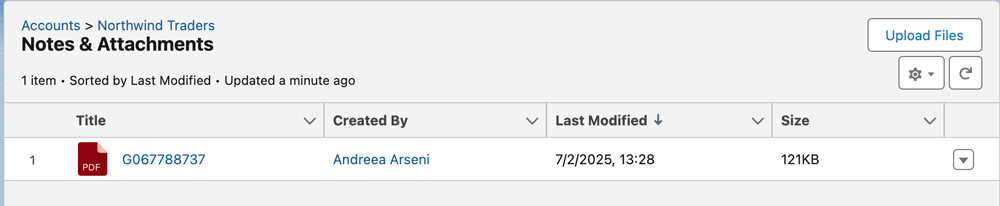
image: Attachment in Salesforce
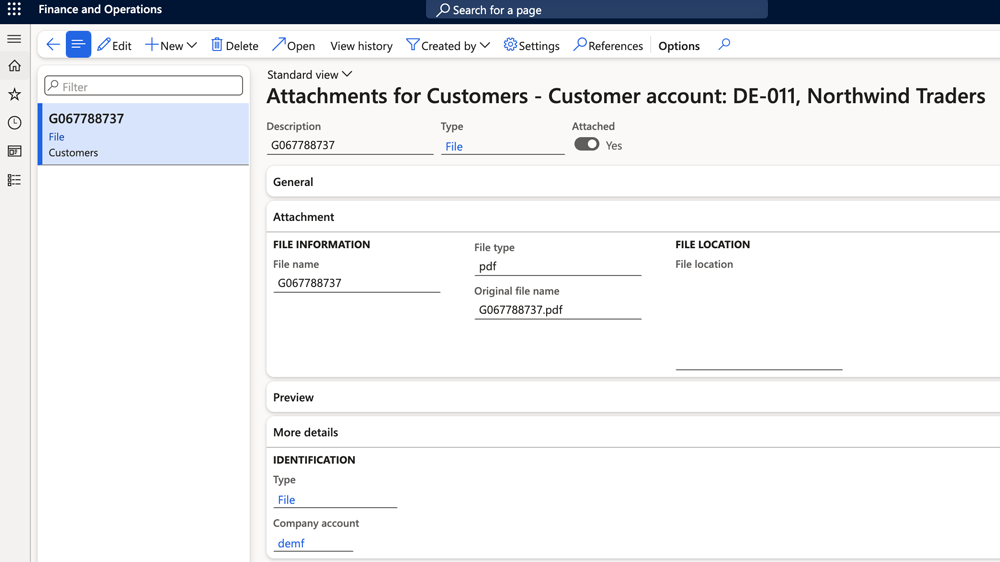
image: Attachment in Microsoft Dynamics 365 Finance
3. Additional Concepts
- Classic Salesforce Attachments vs. Files
Some Salesforce orgs use ContentDocument and ContentVersion instead of the Attachment object. Any of these objects can be used in order to transfer attachments to and from Microsoft Dynamics 365 Finance.
- Parent Records
In this scenario, the assumption is that every Attachment in Salesforce has a valid Account as its parent. If an attachment were attached to another object (e.g., Opportunity), the lookup might need adjusting to map the right object and field. - Write-back functionalities:
When transferring an attachment from Salesforce to Microsoft Dynamics 365 Finance, you can also write back into Salesforce the attachment ID or the date and time when the attachment has been transferred. However, this type of customization is only possible when using the Salesforce object ContentVersion because it allows for custom fields creation. The other related objects do not allow any custom fields creation.
Why This Matters
Bidirectional attachment transfers ensure up-to-date documentation across departments, eliminate data silos, and improve operational efficiency. By automating file exchanges, businesses can reduce errors, save time, and promote seamless collaboration between sales and finance teams.
In conclusion, this article has demonstrated how bidirectional attachment transfers between Microsoft Dynamics 365 Finance and Salesforce ensure up-to-date documentation across departments while fostering smoother, more efficient operations. By automating file exchanges and reducing manual intervention, businesses can eliminate data silos, minimize errors, and enhance collaboration between sales and finance teams. This integration is truly a game-changer for organizations aiming to streamline their processes and boost operational efficiency.
I hope you found this article useful and if you have any issues with the setup of your file transfers please contact support for further assistance.
Also, I encourage you to check out this article on how to setup file transfers to and from MS Dynamics 365 Business Central and Support for attachment for Microsoft Dynamics 365 Finance and Sales
Watch webinar replay about our Salesforce - Microsoft Dynamics 365 Finance Integration